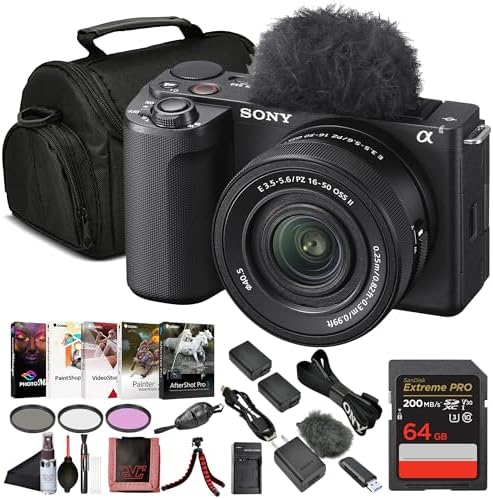
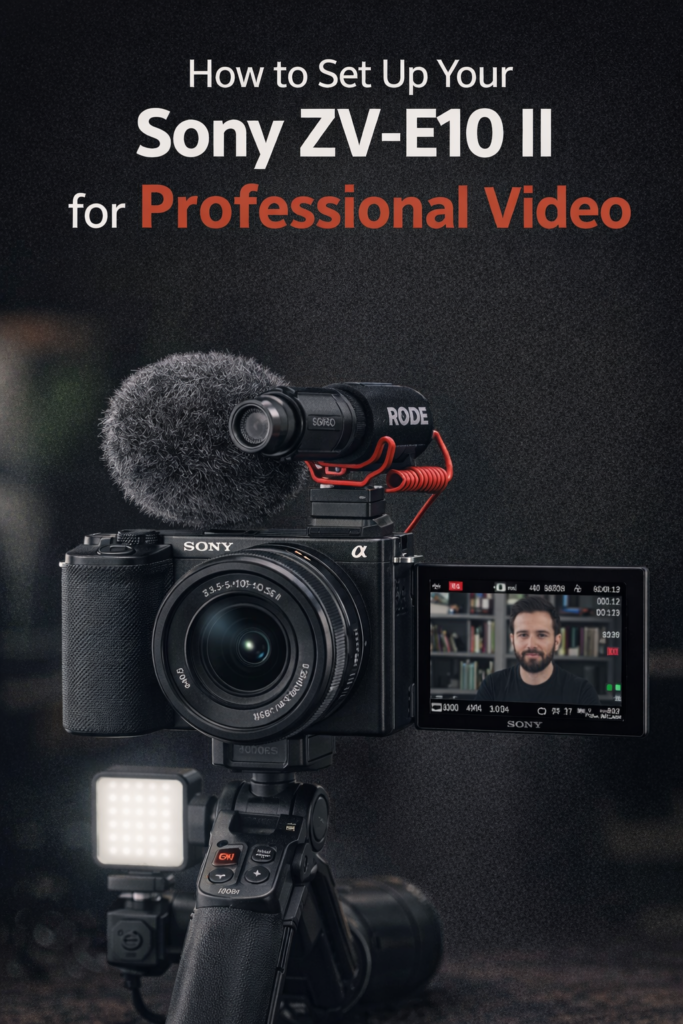
So, you just got your new Sony Alpha ZV-E10 II. It’s a powerful tool, but the default settings won’t give you that “cinematic look” you see on big YouTube channels.
In this tutorial, we will walk you through the essential settings to turn this compact camera into a cinema beast.
1. Enable 4K 10-bit Recording
By default, the camera might be set to a lower quality to save space. To fix this:
- Go to Menu > Image Quality > File Format.
- Select XAVC S 4K.
- Set the Movie Settings to 10-bit 4:2:2. This gives you much more data for color grading later.
2. Switch to S-Cinetone
If you want professional skin tones without spending hours in editing software:
- Go to Menu > Color/Tone > Picture Profile.
- Select PP11 (S-Cinetone). This profile is famous for its cinematic look directly from the camera.
3. Set the Shutter Speed (The 180-Degree Rule)
To get natural motion blur, your shutter speed should always be double your frame rate:
- If shooting at 24fps, set shutter to 1/50.
- If shooting at 60fps, set shutter to 1/120.
4. Configure the AI Autofocus
The AI in the ZV-E10 II is incredible, but you need to tell it what to look for:
- Enable Face/Eye Priority in AF.
- Set Subject Recognition to “Human” (or “Animal” if you’re filming pets).
- Set AF Transition Speed to “4” for smooth, natural focus pulls.
5. Audio Setup
Even if you are using the DJI Mic 2, you need to adjust the camera’s internal levels:
- Go to Audio Rec Level.
- Lower the camera’s internal gain (usually to around 5 or 6) and increase the output on your microphone. This prevents “hissing” background noise.
Recommended Gear for this Setup
Bestseller #1

Bestseller #2